
On this page
GoJigsaw's jigsaw puzzle maker turns a photo from your device into an online jigsaw puzzle that you play in the browser. Choose a JPG, PNG or WebP picture of up to 25 MB and the puzzle opens straight away, on the same board as every other puzzle on the site. It is free, and you don't need an account or an app. The photo is never uploaded: the page prepares it inside your browser and keeps it there.
The maker is for anyone who wants to turn a picture into a puzzle and play it: a dog asleep on the sofa, last summer's beach, a grandchild's drawing.
The short version:
- Choose a photo above, or drop it on the box, and the puzzle opens at once.
- Sizes run from 12 to 500 pieces. Which ones you get depends on the size and shape of the photo.
- The photo and your progress stay in this browser, up to 20 photos.
- The puzzles are for playing on screen. The maker can't print a puzzle or share one by link.
How do you make a jigsaw puzzle from a photo?
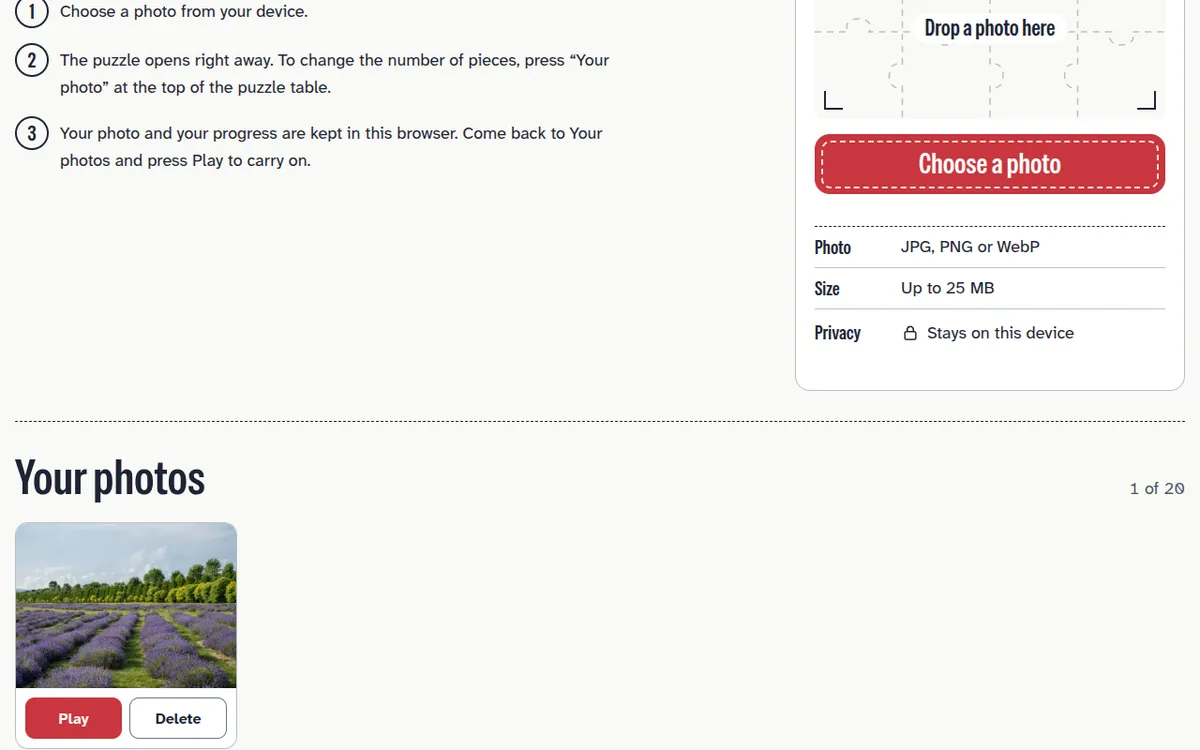
- Press Choose a photo and pick a picture, or drag one from your computer onto the box. On a phone or tablet, tap the box to open your photos.
- The page turns the photo the right way up, shrinks it to 2,560 pixels on its long side if it is bigger, and opens the puzzle. A new photo starts at 24 pieces, or at the number of pieces you last played on GoJigsaw.
- To change the number of pieces, press Your photo at the top of the table, pick a size and press Play.
- Close the puzzle to go back to Your photos. Press Play on a photo to carry on where you stopped, or Delete to remove the photo and its unfinished games.
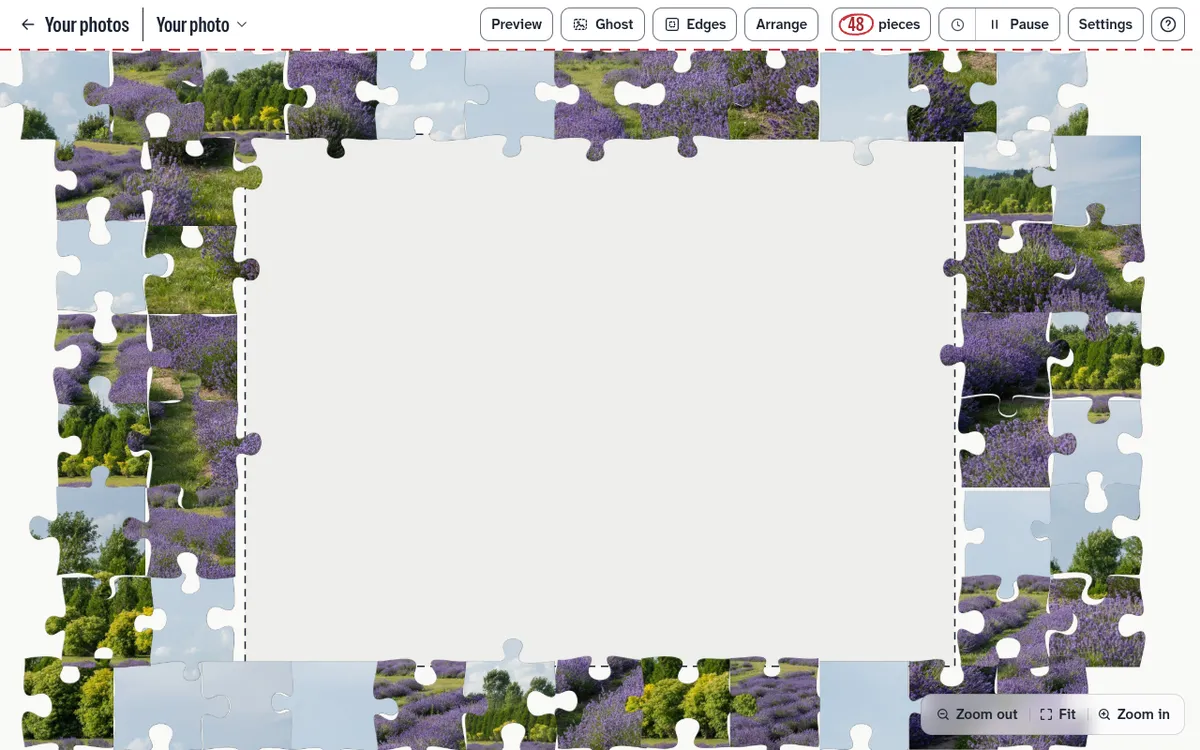
The board has the same tools as every puzzle on GoJigsaw, including Edges, Ghost, Preview, Arrange and piece rotation. How to play explains each one.
How long does it take to make a puzzle?
About a second for a small puzzle, and a few seconds for a large one. We timed the maker on a desktop computer (Intel Xeon E5-2696 v3 processor, Chrome 157) with a 4 MB, 12-megapixel photo of 4,032 × 3,024 pixels, three times at each size. From choosing the file to a board ready to play took 0.5 to 0.9 seconds at 24 pieces and 1.4 to 3.2 seconds at 494 pieces. Reading and shrinking the photo took 0.4 to 2.6 seconds of that; cutting the pieces added 0.1 to 0.3 seconds at 24 pieces and 0.6 to 0.8 seconds at 494. We haven't timed it on a phone, where it may be slower.
How many pieces will your puzzle have?
There are seven sizes: 12, 24, 50, 100, 200, 300 and 500 pieces. GoJigsaw keeps every piece close to square, so the real count changes with the shape of the photo. It tries every grid of columns and rows whose pieces are at most 1.2 times wider than tall (or taller than wide) and picks the one closest to the size you chose, unless a grid with squarer pieces comes almost as close. We built the table below by running that rule for four photo shapes. Most phone photos are 4:3, most camera photos are 3:2, and wide shots are 16:9:
| Size | 4:3 | 3:2 | 16:9 | Square |
|---|---|---|---|---|
| 12 | 12 | 12 | 15 | 9 |
| 24 | 24 | 24 | 24 | 25 |
| 50 | 48 | 54 | 50 | 49 |
| 100 | 99 | 96 | 98 | 100 |
| 200 | 192 | 204 | 198 | 196 |
| 300 | 300 | 294 | 299 | 289 |
| 500 | 494 | 504 | 510 | 484 |
A phone photo held upright (3:4) gets the same counts as a 4:3 one.
The bigger sizes need more pixels, because each piece must be at least 48 pixels wide in the photo. A 4:3 photo needs at least 1,248 × 936 pixels for 494 pieces, and an 800 × 600 picture stops at 200 pieces. A photo straight from a 12-megapixel phone camera (4,032 × 3,024 pixels) gets all seven sizes. On a touch screen, a size is left out when its pieces would be less than 28 pixels wide with the whole puzzle on screen. That is a little above the 24-pixel minimum for touch targets in the W3C's accessibility guidelines (WCAG 2.2), so a phone may offer fewer sizes than a computer.
What makes a good photo for a jigsaw puzzle?
A puzzle is easier when each part of the picture looks different from the parts around it. Check your photo against this list before you choose:
- Sharp focus. Blur makes neighboring pieces look alike, and it gets worse as the pieces get smaller.
- Color and detail across the whole frame. Faces, writing and strong lines give you places to start.
- Little plain area. A big blue sky, a white wall or calm water is the slowest part of any puzzle, so choose fewer pieces for a photo that has a lot of it.
- A subject that fills the frame. The whole photo becomes the puzzle and nothing is cropped, so a small subject in a wide scene leaves most pieces as background.
- Enough pixels for the size you want (see the table above).
What if your photo won't open?
The page says why under the photo box. It checks for these cases:
- An iPhone photo in HEIC format. Newer iPhones can save photos as HEIC, which this page can't open. Convert the photo to JPG, or follow Apple's guide to HEIF to set Settings > Camera > Formats to Most Compatible so new photos are saved as JPEG.
- A file over 25 MB. A 39-megapixel photo straight from a camera (7,629 × 5,086 pixels, 27 MB) was refused. Save a smaller copy, about 4,000 pixels on the long side, and choose that. The same photo at 4,032 × 3,024 pixels was 4 MB and opened in under a second at 24 pieces.
- A very small picture. A picture too small to cut even into 12 pieces is refused; at 4:3 that means under 192 × 144 pixels.
- Full storage. When the browser won't save the photo, you can still play it, but the photo and your progress are gone when you close the puzzle.
Is my photo private?
Yes. The photo never leaves your device. Your browser reads it, prepares it and runs the puzzle, then saves the photo in its own storage on that device. GoJigsaw never receives a copy, so nobody else can see it or play it. We chose this over storing photos on a server. Nothing you choose can leak from our side, but there is also no share link and no copy to fall back on. The page shrinks big photos to 2,560 pixels on the long side, which keeps each saved copy small.
This also means your photos and saved games exist only in the browser where you added them. Another browser, phone or computer won't see them. Clearing the site's data in your browser deletes them, and a private window usually forgets them when it closes. MDN's guide to browser storage lists two more cases: a browser may delete a site's data when the device runs low on space, and Safari can delete it when you haven't interacted with the site in your last seven days of browsing. Keep the original photo on your device, and you can add it again at any time.
You can keep up to 20 photos. To add another after that, delete one in Your photos.
What if you don't have a photo ready?
Play the Puzzle of the Day, a new picture every day, or pick a subject in the puzzle library.
Piece counts, limits and timings were checked against the maker on 10 November 2026. The photo in the screenshots is a lavender field on Île d'Orléans, Quebec, by Wilfredor, released into the public domain (CC0) on Wikimedia Commons.

Last updated: